Author: Rob Steele

  • Unbreakable Backups: Leveraging Synology NAS for Immutable Snapshots

    Data is the lifeblood of businesses and individuals alike. From critical business documents to irreplaceable personal memories, the importance of robust data protection cannot be overstated. Enter Synology NAS (Network Attached Storage) systems, which offer a powerful solution for data storage and backup. One of their most valuable features is the ability to create immutable snapshots, providing an unbreakable defense against data loss, corruption, and even ransomware attacks. In this comprehensive guide, we’ll explore how to leverage Synology NAS for immutable snapshots, ensuring your data remains safe and recoverable no matter what challenges arise.

    Understanding Immutable Snapshots

    Before diving into the specifics of Synology’s implementation, it’s crucial to understand what immutable snapshots are and why they’re so important.

    A snapshot is a point-in-time copy of your data. It captures the state of your files and folders at a specific moment, allowing you to roll back to that exact state if needed. What makes a snapshot “immutable” is that once created, it cannot be modified, deleted, or tampered with for a specified period. This immutability is the key to creating truly unbreakable backups.

    The Benefits of Immutable Snapshots:

    1. Ransomware Protection: If your system is infected with ransomware, the malware can’t encrypt or delete your immutable snapshots, ensuring you always have a clean copy of your data.
    2. Accidental Deletion Safeguard: Human error is a leading cause of data loss. Immutable snapshots protect against accidental deletions or modifications.
    3. Compliance Requirements: Many industries have strict data retention and protection requirements. Immutable snapshots help meet these compliance standards.
    4. Forensic Analysis: In the event of a security incident, immutable snapshots provide an untampered record for investigation.

    Synology’s Approach to Immutable Snapshots

    Synology has integrated immutable snapshot technology into its Btrfs-based file system. This feature, available on many Synology NAS models, allows users to create snapshot retention policies that lock snapshots for a specified period, preventing any modifications or deletions.

    Key Features of Synology Immutable Snapshots:

    • Customizable Retention Periods: Set snapshots to remain immutable for hours, days, weeks, or even years.
    • Automatic Scheduling: Create snapshots at regular intervals without manual intervention.
    • Space-Efficient: Synology uses a copy-on-write mechanism, meaning snapshots only store changes, not full copies of data.
    • Easy Recovery: Restore entire folders or individual files from snapshots with just a few clicks.

    Setting Up Immutable Snapshots on Your Synology NAS

    Now, let’s walk through the steps to configure and use immutable snapshots on your Synology NAS. This process assumes you’re using a Synology NAS with DSM (DiskStation Manager) 7.0 or later and a volume formatted with the Btrfs file system.

    Step 1: Enable Snapshot Replication Package

    1. Log into your Synology NAS via DSM.
    2. Open the Package Center.
    3. Search for “Snapshot Replication” and install it if not already present.
    4. Once installed, launch the Snapshot Replication application.

    Step 2: Create a Snapshot Schedule

    1. In Snapshot Replication, click on the “Snapshots” tab.
    2. Click “Create” to set up a new snapshot schedule.
    3. Select the shared folder you want to protect.
    4. Configure the snapshot schedule (e.g., hourly, daily, weekly).
    5. Set the retention policy for your snapshots.

    Step 3: Enable Immutability

    1. In the snapshot schedule settings, look for the “Lock Snapshots” or “Enable Immutability” option.
    2. Enable this feature and set the immutability period (e.g., 30 days, 90 days, 1 year).
    3. Save your settings.

    Step 4: Verify Immutable Snapshots

    1. After the scheduled time, check the “Snapshots” tab to see your newly created immutable snapshots.
    2. You’ll notice a lock icon next to immutable snapshots, indicating they cannot be modified or deleted.

    Step 5: Test Recovery (Optional but always recommended)

    1. Navigate to File Station in DSM.
    2. Right-click on a folder or file and select “Restore Previous Versions.”
    3. Choose a snapshot and restore it to test the recovery process.

    Best Practices for Immutable Snapshots

    To maximize the effectiveness of your immutable snapshot strategy, consider these best practices:

    1. Layered Approach: Use immutable snapshots in conjunction with other backup methods, such as off-site replication or cloud backups.
    2. Regular Testing: Periodically test the restore process to ensure your snapshots are working correctly and that you’re familiar with the recovery procedure.
    3. Retention Policy Balance: Strike a balance between retention length and storage capacity. Longer retention periods provide more protection but require more space.
    4. Monitor Storage Usage: Keep an eye on how much space your snapshots are consuming and adjust policies if needed.
    5. Document Your Strategy: Maintain clear documentation of your snapshot and backup strategies for quick reference in case of an emergency.

    Advanced Features and Considerations

    As you become more comfortable with immutable snapshots on your Synology NAS, consider exploring these advanced features and considerations:

    Snapshot Replication

    Synology allows you to replicate your snapshots to another Synology NAS, providing an additional layer of protection. This feature is particularly useful for creating off-site backups.

    To set up snapshot replication:

    1. In Snapshot Replication, go to the “Replication” tab.
    2. Click “Create” to set up a new replication task.
    3. Choose the source (local) and destination (remote) Synology NAS.
    4. Select the shared folder and snapshot schedule to replicate.
    5. Configure replication settings, including bandwidth limits and compression options.
    6. Enable immutability on the destination NAS to create truly unbreakable off-site backups.

    Snapshot Rotation and Storage Management

    While immutable snapshots provide excellent protection, they can consume significant storage space over time. Synology offers tools to manage this:

    1. Smart Recycle: This feature automatically deletes older snapshots based on rules you define, helping to conserve space while maintaining adequate historical coverage.
    2. Customizable Retention Rules: Set different retention periods for hourly, daily, weekly, and monthly snapshots to optimize storage usage.
    3. Storage Analyzer: Use this built-in DSM tool to visualize how much space snapshots are consuming and identify opportunities for optimization.

    Integrating with Hyper Backup

    Synology’s Hyper Backup package can work in tandem with immutable snapshots to create a comprehensive backup strategy:

    1. Use immutable snapshots for quick, point-in-time recovery of files and folders.
    2. Utilize Hyper Backup for longer-term, off-site, or cloud-based backups of your entire system.
    3. Configure Hyper Backup to include your snapshots in its backups, ensuring your point-in-time recoveries are themselves backed up.

    Monitoring and Alerting

    Set up monitoring and alerting to stay informed about the health and status of your immutable snapshots:

    1. Use the built-in notification system in DSM to receive alerts about snapshot creation, replication status, and any issues.
    2. Configure email notifications to receive regular reports on your snapshot and backup status.
    3. Leverage Synology’s Active Insight service for more advanced monitoring and predictive analysis of your NAS health, including snapshot-related metrics.

    Security Considerations

    While immutable snapshots provide robust protection, it’s essential to consider overall system security:

    1. Implement strong access controls to prevent unauthorized users from accessing or modifying snapshot settings.
    2. Regularly update your Synology NAS firmware and packages to protect against potential vulnerabilities.
    3. Use Synology’s built-in security tools, such as Firewall and Security Advisor, to enhance your overall system protection.

    Immutable snapshots on Synology NAS systems offer a powerful tool in the fight against data loss, corruption, and ransomware. By following the steps and best practices outlined in this guide, you can create an unbreakable backup strategy that ensures your critical data is always protected and recoverable.

    Remember, the key to effective data protection is a multi-layered approach. Immutable snapshots should be part of a broader strategy that includes off-site backups, regular testing, and robust security measures. With Synology’s user-friendly interface and powerful features, even small businesses and home users can implement enterprise-grade data protection strategies.

    As data continues to grow in volume and importance, the ability to create unbreakable backups becomes increasingly critical. By leveraging Synology NAS for immutable snapshots, you’re not just protecting your data – you’re securing your digital future.

    Take the time to implement and fine-tune your immutable snapshot strategy today. The peace of mind and data resilience you gain will be invaluable when you need it most.
  • Quick ChatGPT SEO Playbook Guide

    When looking to be relevant in your particular niche, it takes more than a couple blog articles to rise to the top. Here are some quick ChatGPT prompts you can use to improve your rank.

    help me come up with a topical map for my blog that has the best chance of helping me rank for long tail keywords that are specific to my keyword "YOURKEYWORD" and give each a clickbait style title. Provide a list of 50 titles, and prioritize transactional intent topics. next to each title, add the best longtail keyword phrase that title should be targeting. Do not duplicate keyword phrases.

    Next you will want to write an article about that keyword:

    Now create an outline for an article titled "YOURTITLE". Write it as an experienced cosmetic surgeon specializing in men's procedures, and write it for men over the age of 50. 

    The above example was used for cosmetic surgeons. You want to make sure ChatGPT is writing from the perspective of the expert you are writing about. Once you have the outline you want, then have ChatGPT write an article about the topic.

    Now write the article in a casual, helpful tone, (or in Alex Hormozi/Oprah style) and insert personal anecdotes if they help illustrate a point. Include H2s and H3s as needed, and expand on key points or add more if needed to hit at least 1000 words. 

    Now you will want to focus on the title for maximum clicks.

    create 10 click-bait style titles for the article. All titles generated must be optimized for keyword phrase "YOURKEYWORDPHRASE"

    Once you have your new title and have personalized the content a bit with your own personal insights (DON’T JUST USE CHATGPT’s OUTPUT) you should paste the whole article back into ChatGPT for one last pass in order to optimize for your keyword.

    is the following article optimized for the keyword phrase "YOURKEYWORD"? If so, just tell me it's ok. If not, make it optimized with minimal rewriting. Put your changes in bold. Here is the article: 

    You should be all set now! 🙂 If you have any sales pages, you may want to spruce them up a bit and here is how…

    Is this page optimized for the search term "YOURSEARCHTERM"? Does it include enough semantically related terms to be thorough? If so, just tell me it's good. If not, add what needs to be added to be fully optimized, but make sure it reads naturally and makes perfect sense. Use bold text on all new content and keywords you add. Here's the content:  

    then to sweeten the page a bit more…

    lets add an extra keyword-rich section at the bottom. Make it benefit-driven, and read naturally. 

    Once the new text is returned. Make sure to do 1 last check:

    is the new page with the changes and the extra section now fully optimized for the term "YOURTERMHERE"?
  • The PC must support TPM 2.0

    The PC must support TPM 2.0

    I was able to disable the TPM check for a Windows 11 installation in VMware Fusion, but when trying to install some newer Windows Insider updates, I got an error when trying to install updates.

    The error was:
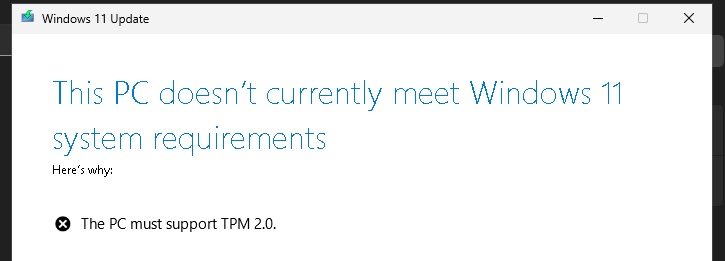
    The PC doesn’t currently meet Windows 11 system requirements.

    The PC must support TPM 2.0

    The fix was surprisingly easy. I just had to encrypt the VM in VMware Fusion, then add a new device: Trusted Platform Module.

    Powered back on and the update was able to proceed.

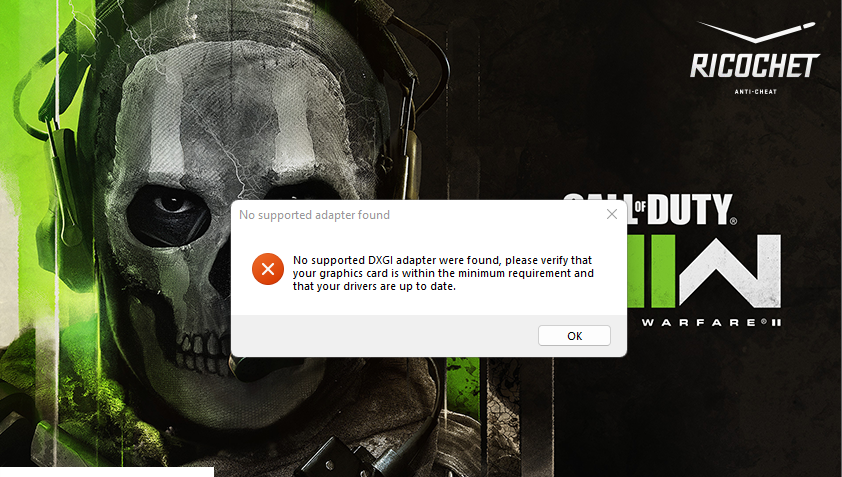
  • No supported DXGI adapter were found MW2

    No supported dxgi adapter were found MW2

    Well this is new. Suddenly I don’t have an adapter / graphics card to run modern warefare 2.

    Step 1: Update drivers.

    Step 2: Reboot

    Hmmm same issue. No supported DXGI adapter were found, please verify that your graphics card is within the minimum requirement and that your drivers are up to date.

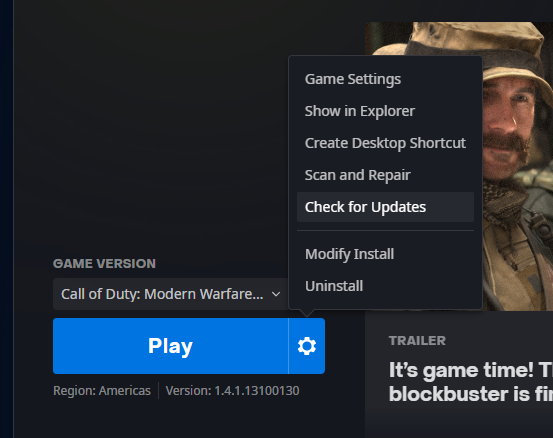
    Step 3: Check for updates in Battle.net

    battle net check for updates MW2

    Looks like we were already up to date.

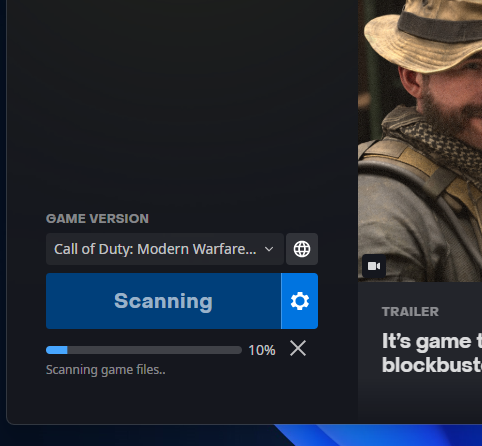
    Step 4: Scan and repair

    The scan seemed to have corrected the issue. Special thanks to TheSneezingMonkey for his video help.

  • How to get the Forgotten Keycard in Rebirth Island

    How to get the Forgotten Keycard in Rebirth Island

    There are currently 3 keycards to acquire in Call of Duty Warzone Pacific season 2… The Perseus Keycard, Vikhor’s Keycard and my personal favorite: The Forgotten Keycard.

    If the video isn’t embedded follow the link to the video: https://twitter.com/RobSteele/status/1508252947301474313?s=20&t=EG1DNPpBOPq0JYZwxaSfZg

  • Unorganized guide to using AI for generative art.

    I’ve started looking into various computer designed artwork and how they are created. It put me into a large internet rabbit hole of various resources so I’m using this page to record some of the good ones.

    Simplified CC12M: https://colab.research.google.com/drive/1Tw_gOowjYuWMuX122rrXTd-RV3A8u_ZD

    AI Animating:
    https://www.youtube.com/redirect?event=video_description&redir_token=QUFFLUhqbnFLdXhwN21UX0RRUzFjcHh4QnJkZ0R1cWU2QXxBQ3Jtc0ttMXBYdDh4UXhYUGI3UjRjX2xpa0ZSbGM0RmE2dU80RE9HRTBSbklyTFItc1lEMEVNamxCdTlHMjFTTlpjdE5oWm9lQV9tRlo4a2t3dVl5bFJUUk4zUmtEUllyeUFfV3FfQkJWclVVWTJBVmFLZnpLZw&q=https%3A%2F%2Fcolab.research.google.com%2Fdrive%2F1_MckQnU0mCF8FJ7PoV21nhVvoOeotHGy%3Fusp%3Dsharing

    CLIP guided Diffusion: https://youtu.be/QVUq7nTchco

    Enhanced with Real-ESRGAN / VQGAN-CLIP

    Pytti: https://www.youtube.com/watch?v=hM9xnar1e_4

  • This PC can’t run Windows 11 on ESXi 7

    This PC can’t run Windows 11 on ESXi 7

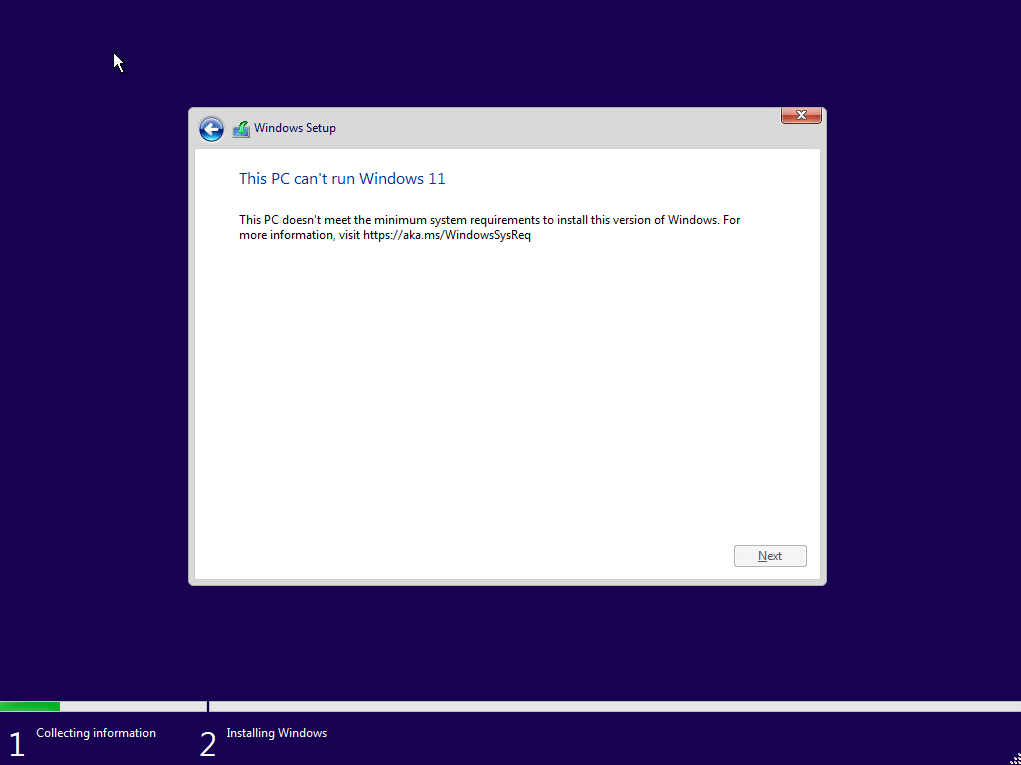
    When trying to install the latest version of Windows 11 on my lab ESXi 7.0 host, I encountered the following message:

    This PC can’t run Windows 11

    I verified that I had met the minimum system/hardware requirements:
    Windows 11 System Requirements
    Proc: 1 Ghz
    RAM: 4 GB
    Storage: 64GB
    System firmware: UEFI, Secure boot capable
    TPM: version 2.0
    Graphics card: directx compatible

    What I soon realized was that my ESXi host did not have TPM 2.0…

    Time to work around the issue…

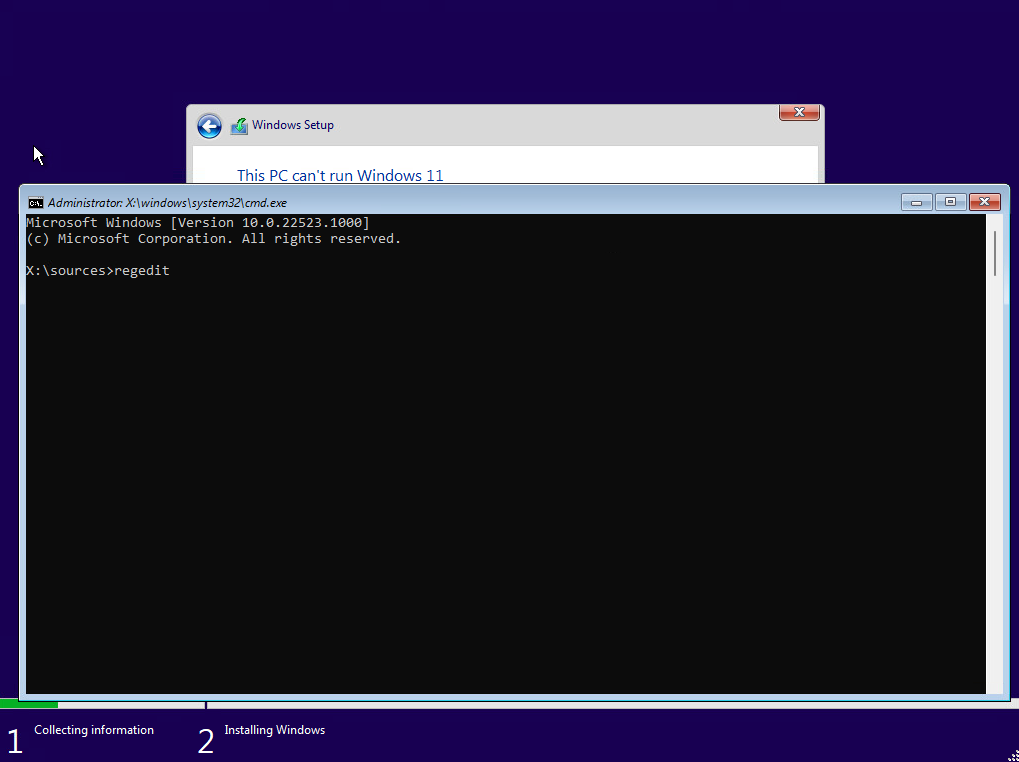
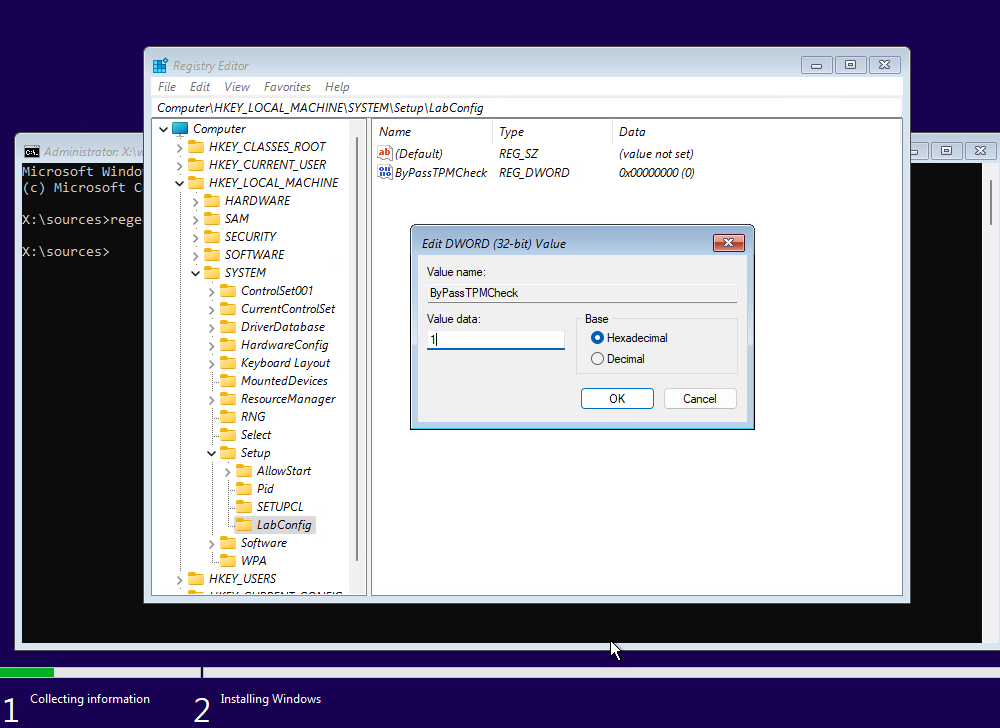
    When you get the error picture above simply press Shift + F10 and this will bring up a dos prompt. Type regedit and hit enter.

    Navigate to HKEY_LOCAL_MACHINE\SYSTEM\Setup and create a new Key called: LabConfig

    Create inside the LabConfig Key a ByPassTPMCheck DWORD (32-bit) with the value of 1

    Click OK after editing the value data and then close out of all of the screens. Once you click on the red x in the corner of the setup screen, the setup will start again and ignore the TPM requirements.

    Let me know if this helped you or didn’t work for you in the comments below.

  • vCenter failed to configure network

    vCenter failed to configure network

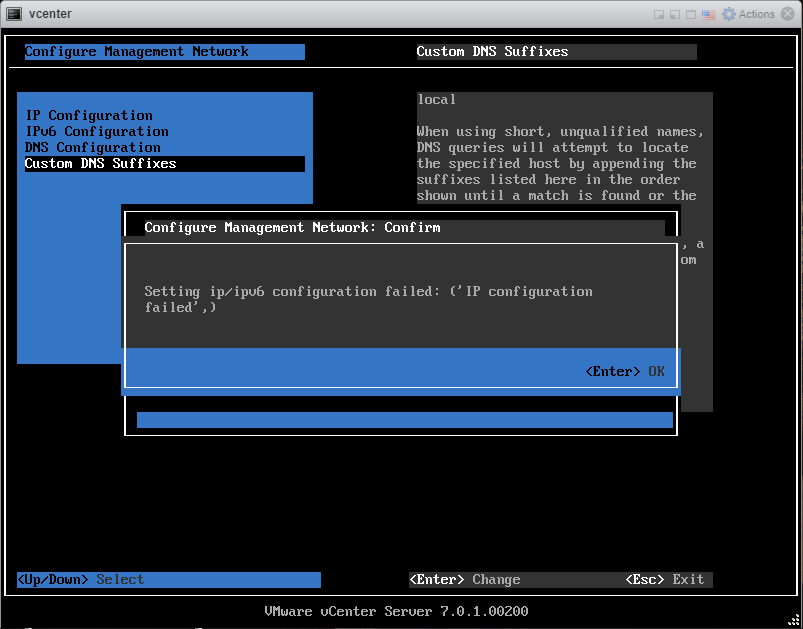
    Well I thought this was fixed in the latest version (7.0U1c) according to the release notes but apparently it wasn’t. If you are like me you are simply trying to deploy the vCenter appliance with standard IPv4 network settings and the setting will not take.

    I’ve had various error messages like: ‘IP configuration not allowed‘ and ‘IP configuration failed‘ as well as: “This vCenter Server cannot be used or repaired because a failure was encountered. You need to deploy a new vCenter Server. Failure details”

    This should be a relatively easy deployment but this bug definitely throws a wrench into the mix.

    Luckily I’ve put some time into troubleshooting this so you don’t have to.

    The best way I’ve found to work around this, is to simply just redeploy the appliance and to not fill out any of the networking configuration settings. (Make sure to set a password)

    This will allow the appliance to inherit a DHCP address and allow you to complete the setup once deployed. You can also try to manually adjust the DHCP setting on the appliance.

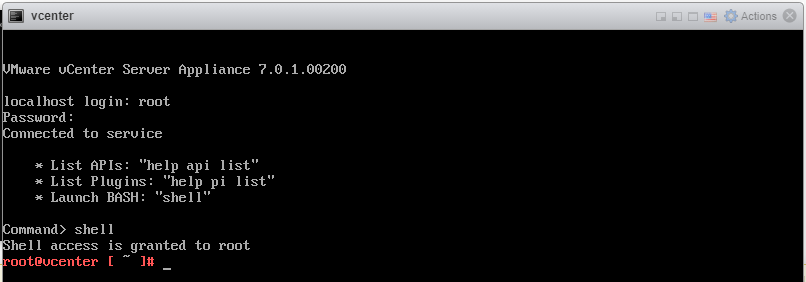
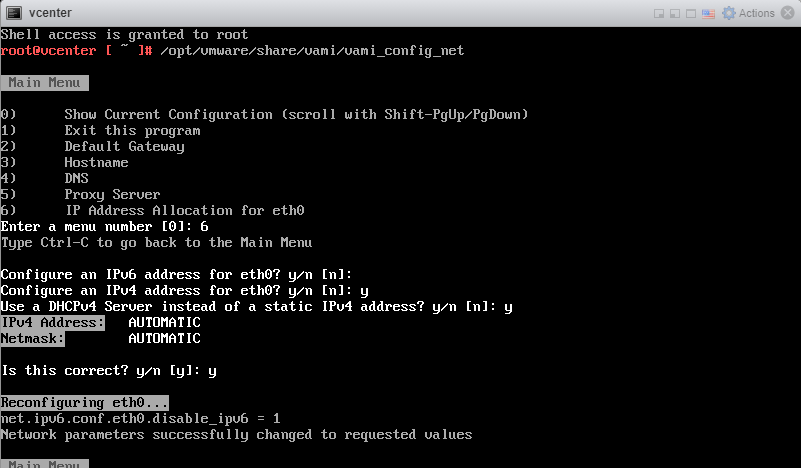
    You will first need to get to the shell. In the browser console of the vCenter VCSA press Alt + F1

    Then login with root credentials and type: shell

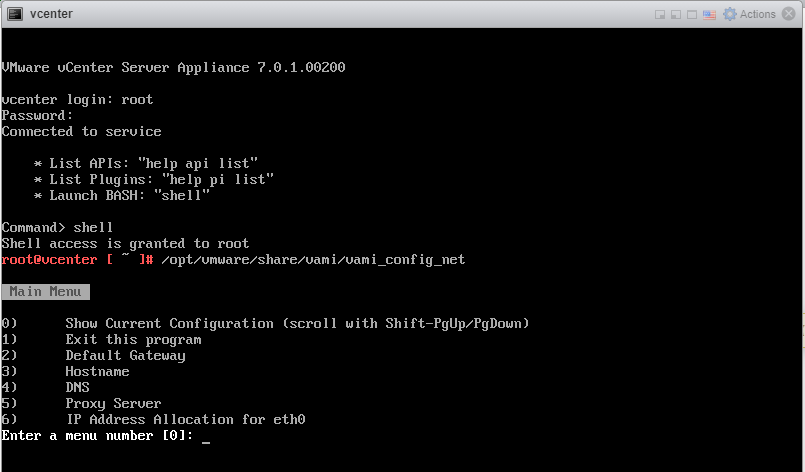
    then run /opt/vmware/share/vami/vami_config_net

    this will allow you to temporarily set DHCP for your appliance to gain access to the setup.

    You can reboot the appliance and you should now have an IPv4 address to continue the setup with. Let me know if this helps you or if you found an easier way to fix in the comments below.

  • Rebirth Event – Common Weapons

    Rebirth Event – Common Weapons

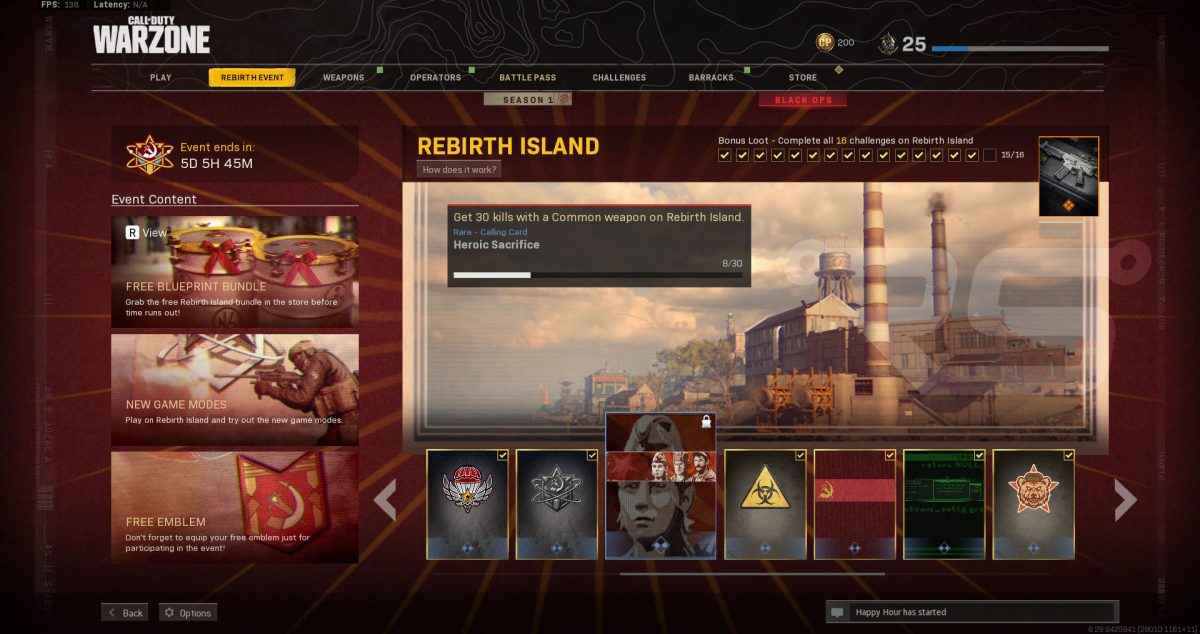
    I’m sure many of you have scratched your heads on this one… for some reason “Common” weapons aren’t really a common thing on rebirth island. As you can see in my screenshot I’ve completed all of the other challenges but have beat my head against the wall trying to solve the Heroic Sacrifice challenge of “Get 30 kills with a Common weapon on Rebirth Island.”

    Luckily I’ve found the way…

    Naturally common weapons can be spawned from small areas or from some Rebirth crates, but as we all know they are few and way too far between.

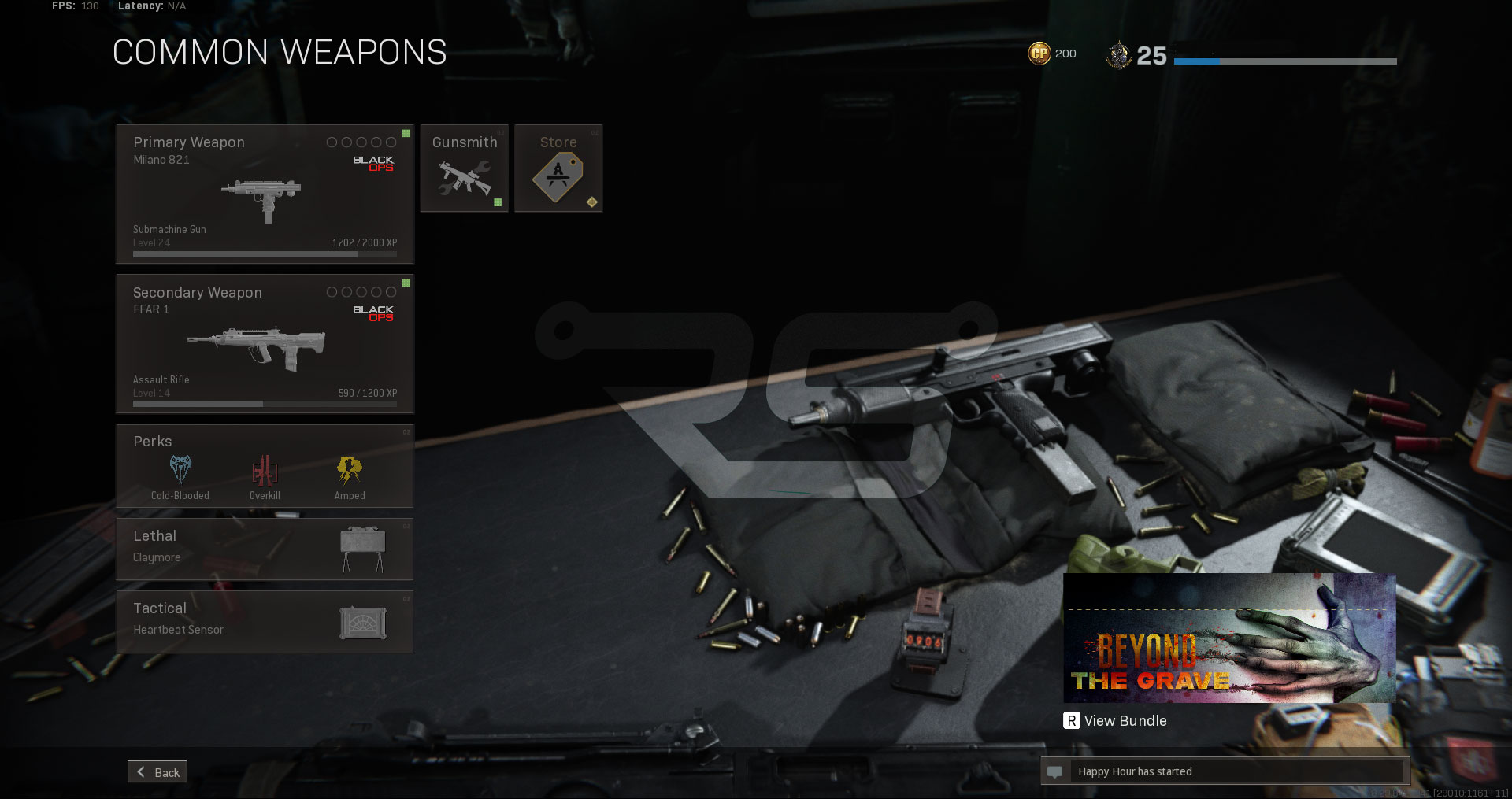
    So in order to guarantee a common weapon on Rebirth Island, you need to build a loadout. That’s right! A loadout with some very specific weapons will count towards the challenge.

    Here they are: The FFAR, Milano, RPD, and the Diamatti are the only weapons that can be use as a Common weapon and count towards the challenge.

    However there is a catch… you cannot add any attachments. But as I see it, not a bad sacrifice for all of the frustrated attempts we have already made.

    My common loadout for rebirth challenge

    I Equipped a Milano and a FFAR for my Custom Loadout (no attachments), and was off to the races. Let me know what you used for your loadout.